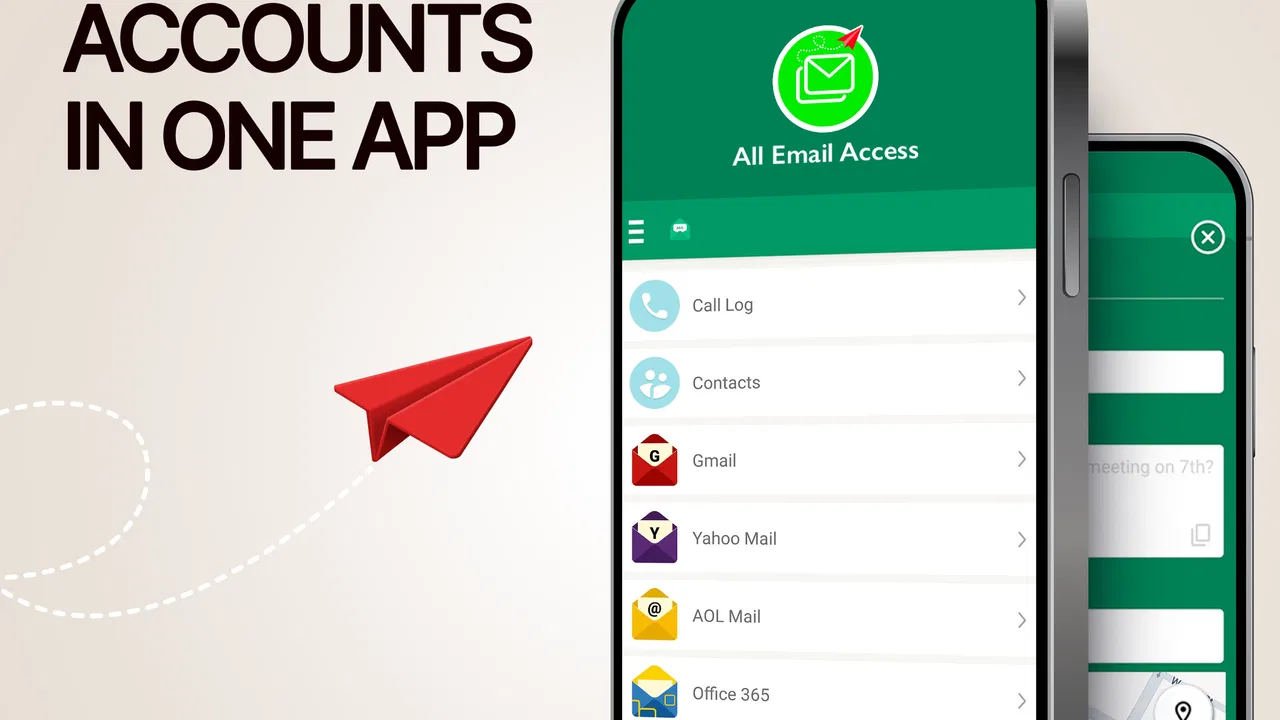
All Email Access: Mail Inbox
- 4.3
- Rating
- 10.00M
- Installs
- Free
- Price

 Analysis by App-foxy
I found All Email Access: Mail Inbox most useful as a practical communication app for people who want several email accounts gathered into one place. Instead of moving between separate mail applications, I could treat the inbox as a single starting point and reach messages from different accounts with less switching. That sounds simple, but it matters when email is spread across personal, work, shopping, school, or family addresses.
The app is free to install, is intended for Everyone, and belongs to the Communication category. It is developed by Email and Inbox Tools. Its central appeal is not that it tries to replace every part of a full email service, but that it focuses on quick access and a more unified routine. I also noticed that its store summary connects email access with returning to mail after phone calls, which gives the app a slightly different everyday angle from a standard inbox replacement.
My overall impression is positive but specific: this is best viewed as a convenient front door for multiple mailboxes, not automatically as the ideal choice for people who need the deepest account controls, advanced organization, or the strongest accessibility customization. Its average rating is 4.3 from around 72 thousand ratings, and it has passed 10 million installs, so it clearly appeals to a broad audience. Still, popularity does not remove the need to check whether its navigation and reading experience fit the way you use email.
You May Also Like

 Blood Strike: 2.5 Anniversary
Blood Strike’s Loadouts Turn Every Drop Into a Tactical Gamble
A close look at Blood Strike’s custom loadouts: how fast access to signature weapons reshapes its battle royale rhythm, rewards preparation, and narrows the gap between fights.

 Pandora - Music & Podcasts
Pandora’s Music Is Easy to Start, but Harder to Recover
Pandora’s strength is its low-effort path from a seed to a station. Its weak spot is how much confidence it asks you to place in connection, setup, and quiet recovery.

 8 Ball Pool
 Is Built on Rivalries, Rematches, and Routine
A close look at the rivalries, rematches, shared routines, and unanswered safety questions that turn a quick pool match into a persistent mobile community.

 Samsung Music
’s Quiet Strength Is Playing What You Already Own
Its reach comes less from spectacle than from dependable access to a personal library. That simplicity is both the app’s strongest retention engine and its ceiling.

 AccuWeather: Weather Radar
AccuWeather Review: A Quick, Clear Forecast for Everyday Decisions
For everyday plans, the best forecast is the one you can understand quickly. AccuWeather makes rain timing, radar, and local conditions easy to act on, with a few trade-offs.

 Hill Climb Racing
Why Hill Climb Racing Still Turns Crashes Into One More Run
A tiny car, a bumpy hill and one more upgrade: Hill Climb Racing keeps resurfacing because its simple chaos makes every near-miss feel personal.
More From Our News Desk



How the inbox feels to read and navigate
I focus here on the small choices that shape how comfortable it feels to move through messages, rather than assuming that a combined inbox is automatically easier for everyone. In particular, I consider how a reader can keep account context in mind while scanning and deciding what needs attention. That leads naturally to the practical question of whether the same routine works across different abilities and everyday settings.
A simpler starting point for several accounts
The first benefit I noticed was the reduced mental effort of having one place to begin. When several addresses are involved, the repeated process of opening one service, checking it, closing or backing out, and then opening another can become tiring. A combined mail app can make that routine feel more like checking one desk rather than visiting several buildings.
This is especially helpful for someone who does not want to remember which account received a particular message. A family member might use one address for bills, another for personal correspondence, and a third for appointments. A small business owner may separate customer messages from private mail. In both cases, a unified view can reduce the amount of navigation needed before the actual reading begins.
I would still recommend taking a little time to identify which account a message belongs to before replying. Consolidation is convenient, but it can also blur boundaries. A quick glance at the sender and account context is worthwhile when a response needs to come from a specific address. That is a useful habit for anyone, and it becomes even more important when the app is being used as a shared or highly varied communication hub.
Readability depends on the device and the message
Email readability is never determined by the app alone. Screen size, system text settings, message formatting, and the sender’s design all affect how comfortable reading will be. In my experience, a centralized inbox can make scanning easier because I am not repeatedly learning a different layout for every account. The benefit is strongest when I am checking short messages, confirmations, or quick replies.
Long newsletters and heavily formatted emails are a different matter. They can contain small text, crowded buttons, images, or layouts that are awkward on a phone regardless of which mail client opens them. I would not choose this app expecting it to repair poor formatting from senders. For readers who enlarge system text or rely on strong visual separation, it is sensible to test several real messages rather than judging the app only by its first screen.
The app’s purpose also suits people who prefer a direct route to their mail instead of a crowded collection of unrelated tools. That focused approach may make the main task easier to understand: open the app, find the account or message, read, and respond. On the other hand, users who depend on elaborate folders, labels, or highly customized sorting may find a unified presentation less satisfying than the dedicated application provided by their email service.
Returning to email after a call
The reference to easy access to mail after calls is more useful than it may first appear. A realistic example is taking a call from a clinic, delivery company, school, or customer and then needing to check a confirmation immediately afterward. If the app makes that return path quick, it can reduce the chance of forgetting the message or losing track of the next step.
This workflow also helps when a call interrupts another task. I might be checking an appointment email, answer the phone, and then need to return to the inbox without starting the search from scratch. The value here is not a dramatic productivity system; it is the removal of a small interruption that otherwise adds friction. For people who frequently move between calls and messages, those small savings can accumulate during the day.
Useful habits for clearer navigation
I found that the best experience comes from keeping the inbox routine deliberate. I would begin by deciding whether I want to scan everything together or focus on one account at a time. When the app presents multiple sources in one place, that choice can prevent important work messages from being lost among newsletters and casual mail.
I also recommend using a consistent visual check before opening a message: sender, subject, and account context. This is not a special feature, but it is an effective way to avoid accidental replies from the wrong address. For users with attention difficulties, a short two-step routine can be easier than trying to remember account details after opening a message.
Another practical tip is to treat the app as an access layer rather than assuming every account will behave identically. If one mailbox has unusual security steps, different folders, or a distinct reply identity, that account may still be easier to manage in its original service. The unified app can remain useful for checking and triage while the dedicated client handles the complicated cases.
Access across abilities and everyday situations
I look at how the app’s one-place approach can reduce repeated transitions, while recognizing that reading and replying still depend on the person, device, and message. A useful test is to try the full path—from identifying the right mailbox to returning after an interruption—with the accessibility settings you already rely on. That everyday check helps clarify where the app is convenient and where a dedicated mail option may fit better.
Motor considerations on a phone
For users with limited dexterity, the main question is how much precise tapping the daily routine demands. Bringing accounts together can reduce the number of app changes and repeated gestures, which is a meaningful advantage. Fewer transitions may also help people who experience fatigue or discomfort during extended phone use.
At the same time, an inbox still involves selecting messages, opening controls, scrolling, and composing text. A person who has difficulty with small targets or accidental taps should try the app with the phone’s own touch and display settings adjusted to their needs. Larger system text, increased display size, or a different touch-and-hold response may improve the overall experience, although those adjustments are provided by the device rather than guaranteed by this app.
Voice input can also change the balance for someone who finds typing difficult. The practical question is not simply whether the app opens email, but whether composing a reply through the phone’s input tools feels manageable. Short responses are likely to be less demanding than long messages, and a separate keyboard or accessibility control may be preferable for people who write frequently.
I would be cautious about recommending the app solely because it reduces account switching. Less navigation is helpful, but it does not automatically mean every control is easy to reach or every interaction suits every motor ability. A short hands-on trial with the accounts and message types that matter most is more reliable than a general promise of convenience.
Visual and sensory comfort
People with low vision, light sensitivity, or visual fatigue may appreciate having one familiar place to check mail, because repeated changes between different account applications can be disorienting. Consistency in where the inbox is found and how the checking routine begins can reduce cognitive and visual load.
However, email itself is visually unpredictable. Sender-designed newsletters, image-heavy promotions, tiny legal text, and dense threads can create barriers inside any mail application. I would judge the app using ordinary messages, not only a clean test email. If reading becomes tiring, system-level text enlargement, contrast options, screen magnification, or spoken output may be worth testing alongside the app.
For people who use a screen reader, the important experience is whether account names, message subjects, controls, and reply actions are announced in an understandable order. I cannot treat a general-purpose inbox as automatically optimized for every assistive technology. Anyone who depends on spoken navigation should test the essential path: opening the app, identifying the right account, opening a message, finding the reply action, and returning to the inbox.
Users with hearing loss may find the app’s text-first nature convenient because the important communication is visible rather than dependent on audio. The call-related workflow is more situational, though. Someone who communicates through text or relay services may value the return to email after a call, while a person who avoids phone conversations will not gain much from that aspect. The feature’s usefulness depends on the person’s communication habits, not just its presence in the product description.
Situational access for busy and interrupted users
This app makes the most sense when email checking happens in fragments: between appointments, after a call, while commuting as a passenger, or during a short break. A single place for several addresses can reduce the setup time needed for a quick check. That is valuable for people whose attention is repeatedly interrupted and for anyone who wants to confirm whether a message arrived without opening several separate services.
There is also a benefit for households or individuals managing many kinds of correspondence. A parent checking school messages, a freelancer watching for client replies, or a traveler monitoring reservations may prefer one routine over several. The app can act as a low-friction checkpoint: scan what is new, decide what needs action, and leave detailed organization for later.
Still, situational access has limits. Reading email in a noisy, bright, or hurried environment can make any mobile inbox harder to use. Small screens are especially poor for comparing long threads, checking attachments carefully, or reviewing sensitive details. I would use this app for quick awareness and straightforward replies, then move to a larger screen or a more specialized mail tool when accuracy matters more than speed.
People with limited connectivity should also think about their own routine before relying on a centralized app. A unified interface does not change the basic need for the accounts to communicate properly with the service. If access is critical during travel or in areas with unreliable connections, I would test the exact accounts and messages beforehand rather than assuming that one inbox guarantees uninterrupted availability.
Privacy, account boundaries, and trust
Putting several mailboxes behind one application is convenient, but it also concentrates access. That creates a practical trade-off: fewer places to open can mean one especially important place to protect. I would use a strong device lock and be careful when checking private messages in shared spaces.
This arrangement may not suit someone who wants strict separation between work and personal communication. A dedicated work client can make that boundary clearer, while a combined inbox may encourage constant checking or make it easier to answer from the wrong identity. If separation is part of your wellbeing or professional routine, keeping accounts in distinct applications may be the better choice even if it requires more navigation.
I also would not use a single inbox as the only backup for important correspondence. Email accounts remain the authoritative place for messages, and the app should be treated as a convenient way to reach them. For legal, financial, medical, or work-critical communication, I prefer verifying the account and message details before taking action.
Where the experience may fall short
The biggest limitation is that convenience can come at the expense of depth. Dedicated services usually know their own account features best, including specialized folders, provider-specific settings, detailed search behavior, and account management tools. A unified app may be more comfortable for checking several mailboxes, but less satisfying when I need to perform a complex cleanup or configure an unusual workflow.
Another possible barrier is the difference between seeing mail and managing mail. A person may want the app to support an elaborate system of labels, rules, or carefully separated workspaces. The central idea here is access, and users should not assume that a single inbox will reproduce every advanced function of every email provider.
The in-app purchase range runs from $4.99 to $39.99 per item. That makes the free starting point attractive, but I would inspect any upgrade screen carefully before paying. The right question is whether a paid option solves a problem you actually have, such as a workflow limitation that appears during regular use. Someone who only needs occasional checking may be perfectly satisfied without spending money; a heavy user should compare the total value with the official mail apps already available for their accounts.
The current version is 3.7.0.2040, and the minimum operating system is 10. That makes compatibility an important first check on an older device. I would also avoid judging the app only by its install count or rating. A broad user base suggests that the basic concept works for many people, but individual needs around screen readers, motor control, account separation, and message organization are more personal than a score can show.
Who should choose it, and who should skip it
I would recommend trying All Email Access: Mail Inbox if you regularly check several email accounts, dislike jumping between applications, and mainly need a clear route to reading and replying. It is particularly appealing for interrupted routines, quick post-call checks, and people who want a familiar starting point for personal and practical correspondence.
I would be more hesitant for users who need strict work-life separation, advanced provider-specific controls, highly customized inbox rules, or a carefully tested assistive-technology workflow. Those users may be better served by the official application for each email provider, or by a mail client whose accessibility and organization tools are explicitly central to their needs.
For someone unsure, I suggest a focused trial rather than installing it and immediately moving every account. Start with two accounts that represent different parts of your life. Test reading a short message, opening a long thread, composing from the correct address, returning to the inbox after an interruption, and navigating with your preferred device settings. That small test will reveal more than a generic feature list.
My inclusive verdict
All Email Access: Mail Inbox succeeds at a clear everyday job: making several email accounts feel closer to one communication routine. I like the way that focus can reduce app switching and help people return to mail after calls or other interruptions. For many users, that simplicity is an accessibility benefit in practice because it lowers memory demands and shortens the path to a message.
Its inclusive value is not universal, though. A single inbox cannot guarantee comfortable reading for every visual need, effortless control for every motor ability, or complete support for every provider-specific workflow. Those questions should be answered through a real trial using the phone settings, assistive tools, and accounts that the user depends on.
With that qualification, I see it as a sensible free communication app for people who prioritize reachability and convenience over deep customization. It is not the tool I would choose for every email task, but it can be a useful front door to daily mail. If your main barrier is juggling several inboxes, this app is worth testing; if your main barrier is advanced organization or specialized accessibility support, compare it carefully with dedicated alternatives first.
The age rating is Everyone, which fits its straightforward communication purpose. I would install it on a compatible device, begin with a limited account setup, and pay attention to how easily I can identify the sender, account, and next action. If those details remain clear during real interruptions, the app earns its place in the routine. If they become confusing, returning to the official mail applications may be the more inclusive decision.
FAQs for All Email Access: Mail Inbox
01What is All Email Access: Mail Inbox?
All Email Access: Mail Inbox is an email management app designed to bring messages from multiple providers into one convenient place. Instead of switching between separate mail applications, users can access different inboxes through a unified interface. It is intended for people who manage personal, work, or secondary email accounts and want a simpler way to read, organize, and respond to messages.
02Which email services can I use with All Email Access: Mail Inbox?
The app is generally intended to work with popular email services, although the exact list may depend on the current version and device platform. Before downloading, check the app’s store description for supported providers and sign-in requirements. Some services may require additional verification, permission approval, or app-specific passwords, particularly when enhanced security settings such as two-factor authentication are enabled.
03Is All Email Access: Mail Inbox safe to use?
Safety depends on how the application handles account credentials, permissions, and connected email data. Users should review the privacy policy, developer information, requested permissions, and available security options before adding an account. Avoid entering passwords into suspicious screens, keep two-factor authentication enabled where possible, and download only from the official Google Play Store or Apple App Store.
04Does the app support notifications and multiple inboxes?
A key reason to use All Email Access: Mail Inbox is the convenience of managing several accounts from one application. Depending on the version, users may be able to receive notifications, switch between inboxes, read messages, and manage basic email actions without opening each provider separately. Notification behavior can vary by account, phone settings, battery optimization, and synchronization permissions.
05Is All Email Access: Mail Inbox free to download?
The application may be available as a free download, but users should check its current store listing for advertisements, optional purchases, subscriptions, or feature limitations. Free access does not always mean every function is included without restrictions. Review the pricing section carefully before confirming a trial or payment, and check cancellation terms if the app offers premium email-management features.
Pros
- Supports multiple email accounts in one unified inbox.
- Quick access to common providers without installing separate apps.
- Includes push notifications for incoming messages.
- Simple interface that is easy for beginners to navigate.
- Useful search tools help locate older emails quickly.
Cons
- May request broad permissions depending on the connected email provider.
- Some features or providers may require an internet connection.
- Unified inboxes can become cluttered with frequent email activity.
- Notification reliability may vary across devices and accounts.
- Privacy-conscious users may prefer official provider apps instead.

All Email Access: Mail Inbox
Gallery